
Inspector
Move, resize, align, and edit slide elements directly on the canvas.
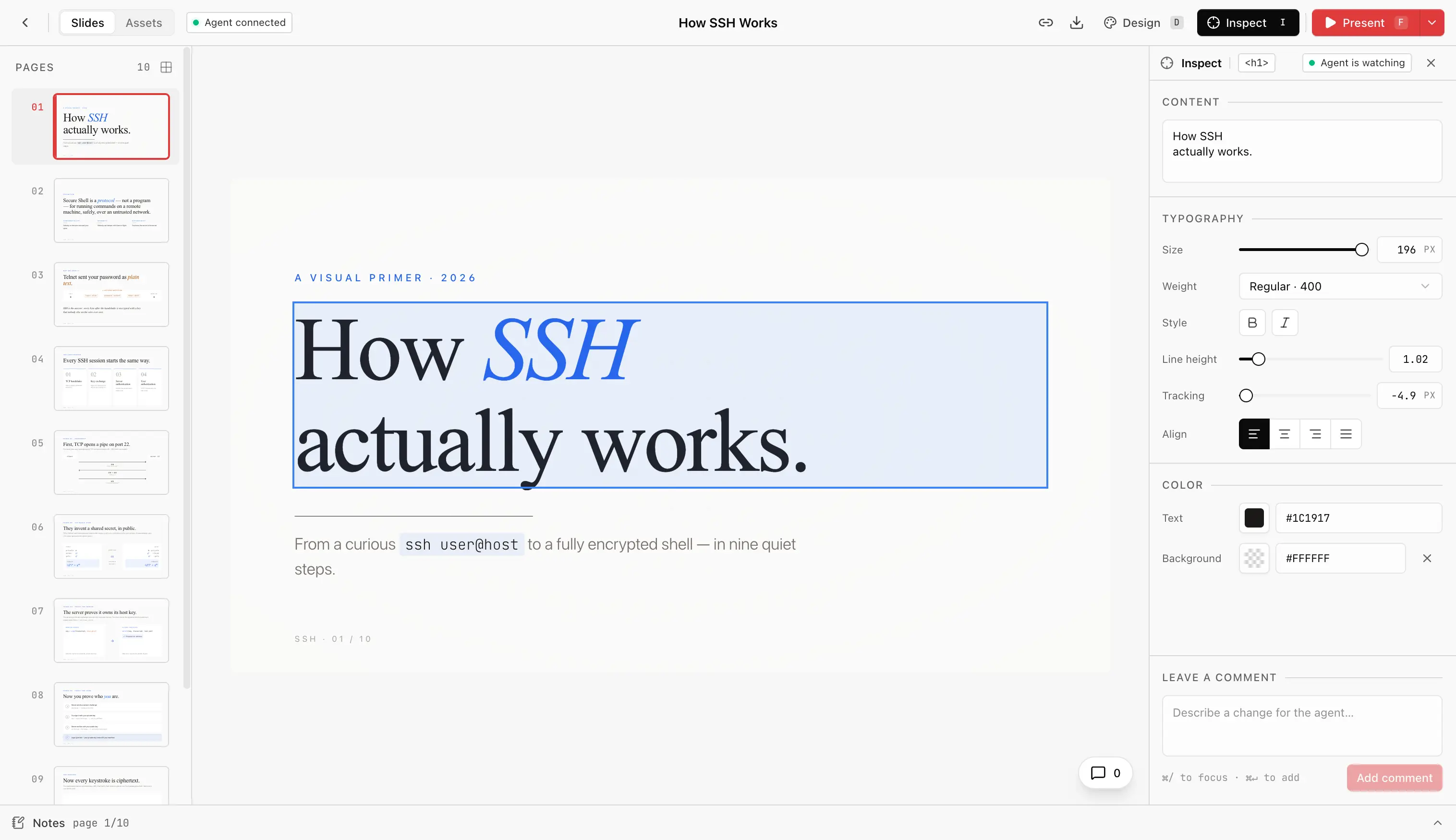
The visual editor is available during development. Slides open in edit mode:
click an object to select it, drag to move it, and double-click text to edit it.
Press Enter to edit a selected text object. Press Escape to return to object
selection, then again to clear the selection.
The Format toolbar button (or i) shows and hides the property panel.
On desktop, the panel stays open while you select different objects or clear
the selection, keeping the canvas in the same position.
Choose Preview to interact with the slide and play its animations, then Edit to resume editing. Present opens presentation mode.
Arrange objects
Click an element to select it. Drag the selection to move it, use its handles to resize it, or drag the rotation handle. Smart guides appear when an edge or center lines up with another element or the slide. Positions and sizes use slide pixels, so the same movement works at any canvas zoom. Rotated elements scale proportionally when their width and height cannot be adjusted independently without distorting the shape.
The Arrange tab provides exact position, size, and rotation inputs, plus alignment and layer controls:
- Align — align left, center, right, top, middle, or bottom. Choose the slide or the combined selection as the reference.
- Distribute — select at least three elements to give them equal gaps horizontally or vertically.
- Layer — bring forward, send backward, bring to front, or send to back within the element's CSS stacking context.
- Smart guides — toggle snapping, or hold
Altto bypass it temporarily. - Select parent — move up to the containing element to arrange a whole
component, card, or text block. Hold
Cmd/Ctrlwhile clicking to select a child inside an already selected container.
Hold Shift while clicking to add or remove elements from the selection.
Drag the combined selection to move all selected elements together. Drag on
empty canvas to select elements with a marquee. Select all selects the
slide's editable elements without selecting both parents and their children.
Width, height, and rotation inputs apply to one element at a time.
| Shortcut | Action |
|---|---|
Enter with a text object selected | Edit its text |
Escape while editing text | Return to object selection |
Escape with an object selected | Clear the selection |
I | Show or hide the Format panel |
| Arrow keys | Move the selection by 1 slide pixel |
Shift + arrow keys | Move by 10 slide pixels |
Shift while dragging | Constrain movement to one axis |
Shift while resizing | Preserve the aspect ratio |
Alt while dragging | Temporarily bypass smart guides |
Shift while rotating | Snap to 15-degree increments |
Escape during a drag | Cancel the current gesture |
Cmd / Ctrl + A | Select all editable objects |
Cmd / Ctrl + Z | Undo |
Cmd / Ctrl + Shift + Z | Redo |
Cmd / Ctrl + S | Save pending edits |
Inline text spans inherit their containing block's layout. Use Select parent to move that block. Elements rendered repeatedly from the same JSX definition also share source styles; select a unique parent container to arrange an instance independently. The panel explains when a selected element cannot be transformed. Layer changes preserve nested content's position and size. If shared nested content prevents this, select a positioned parent container to change layers.
Format text and images
The Format panel shows controls for the selected object. Use the Text tab for typography, text colour, and paragraph alignment; the Image tab for replacement and cropping; and Style for a shape's appearance. Switch to Arrange for geometry, alignment, and layers.
Select a word or phrase directly on the canvas, then change its size, weight,
style, or colour in the panel. The selection stays active so you can continue
typing or apply another format. Cmd / Ctrl + B and Cmd / Ctrl + I
toggle bold and italic while editing text. When the panel is hidden, a compact
toolbar provides the same text controls beside the selection.
Line height and letter spacing sit in the Typography section, and Content lets you edit the object's complete text in a text area. Two expandable sections follow:
- Comment — leave a note for your agent.
- Source — inspect the element tag and agent connection.
Image replacement lets you choose any file in the deck's or the global assets folder; see the assets manager for how the two scopes work.
Edits buffer in memory. Press Save or Cmd / Ctrl + S to write them to
source. Switching to Preview or leaving the deck also saves pending edits.
Use Undo, Redo, or Discard to revise changes before saving.
Comments
Sometimes the change is easier to describe than to perform. Click an element, expand Comment in the Format panel, and type a note:
use the accent colour on this title
The inspector pins the note as an @slide-comment marker in the source. The
marker travels with the element and is invisible at runtime. Run
/apply-comments in your agent to turn the notes into edits — see
/apply-comments.
Selection is visible to your agent
Whenever you click, the inspector publishes the picked element to a file
your agent reads via /current-slide — so
"make this bigger" resolves to the exact JSX node with no "which one?"
round-trip.