
Inspector
Click any element on the canvas to tweak it visually.
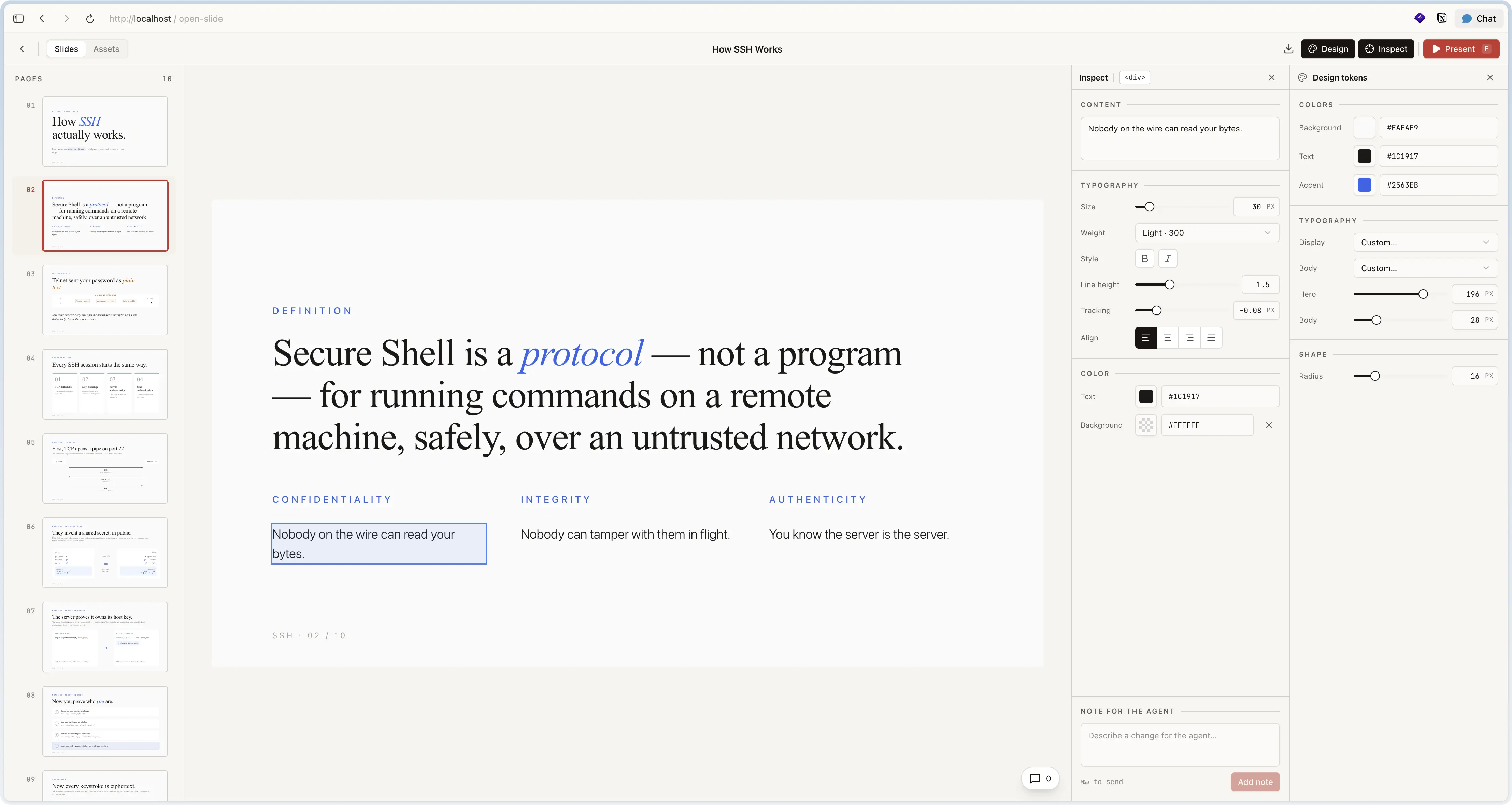
The inspector is a dev-only overlay built into the open-slide runtime. Toggle
it from the toolbar (or press i), then click any element on the slide.
Two surfaces
The inspector exposes two ways to edit a slide:
01 · Visual editor
Click an element. A property panel opens with editable inputs:
- Text — replace inline.
- Typography — font family, weight, size, letter-spacing.
- Colour — text colour, background colour.
- Image src — swap to any file in the deck's assets folder.
All edits buffer in memory until you press Save in the SaveBar. One save lands as a single HMR write to disk.
02 · Comments
Sometimes the change is easier to describe than to perform. Click an element, pick Comment, type a note:
use the accent colour on this title
The inspector pins the note as an @slide-comment marker in the source. The
marker travels with the element and is invisible at runtime.
Run /apply-comments in your agent — see apply-comments
— and the agent rewrites exactly the flagged regions, then clears the markers.